
How to Check Whether Your Ethernet Cable Is Slowing You Down
A speed of 100 Mbps does not always mean the cable is bad, Engadget explains, and you can test it for free.
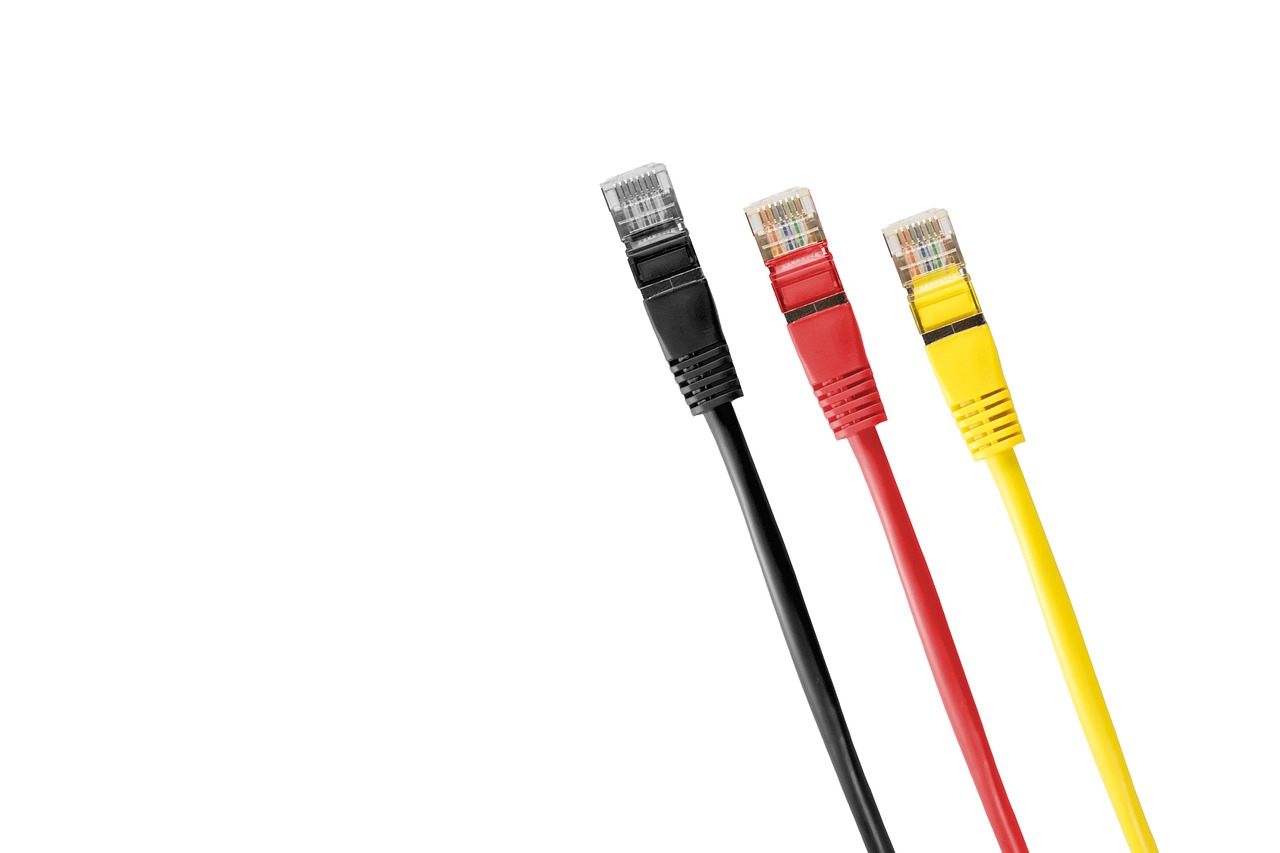
Imagine you pay for gigabit internet, but your wired computer only reaches 90 Mbps. Is an old Ethernet cable to blame? Engadget says that a wired connection avoids Wi-Fi interference and can reduce lag, but plugging in a cable does not automatically make your speed very fast. An online speed test will not give a clear answer either, because it measures more than the cable.
The best first step is to check the Ethernet link speed, which does not need any tester. On Windows 11, open Settings, then Network & internet, then Ethernet, and look at the Link speed field. Another way, which also works on Windows 10, is to press the Windows key and R, type ncpa.cpl, right-click the Ethernet adapter and choose Status. The Speed field shows the connection rate. On a Mac, open System Settings, then Network, then Ethernet, and look under Details and Hardware for the Speed field. Keep the setting on Automatic, because choosing a speed by hand can cause problems.
A reading of 1 Gbps is not the same as downloading at 1 Gbps. The figure describes the link between your computer and the router or network switch. It does not show your internet speed or the top speed of the cable.
Look at the printing on the cable's jacket, which may say Cat5, Cat5e or Cat6. Both Cat5e and Cat6 support gigabit Ethernet, so Cat6 is more than enough for 1,000 Mbps.
If your computer reports 100 Mbps, check the hardware at both ends. A router port or USB Ethernet adapter that only supports 100 Mbps will hold the connection back, however costly the cable is. A damaged wire or a loose connector can also cause a slower connection. Gigabit Ethernet uses all four pairs of twisted wires in the cable, while 100 Mbps uses two.
Start by unplugging and replugging the connectors, then try a short cable that you know works in the same ports. If the speed changes from 100 Mbps to 1 Gbps, the first cable is the suspect. For a deeper test, you can use a free tool called iPerf3 to measure real speed between two wired computers.
More in Technology

Apple Updates App Store Rules to Block Nudified and Explicit Images
New App Store moderation rules require developers to filter and remove nonconsensual intimate images, including those made with AI.

Some Websites Are Blocking AI Assistants That Shop and Book for You
Companies promise AI "agents" can handle tasks online, but many sites are saying no.

Wired Earbuds Are Making a Comeback, and Bose Has a New Pair
The $99 Bose earbuds plug into a USB-C port and offer noise cancelling, with no battery or pairing needed.